> For the complete documentation index, see [llms.txt](https://docs.bito.ai/llms.txt). Markdown versions of documentation pages are available by appending `.md` to page URLs; this page is available as [Markdown](https://docs.bito.ai/ai-code-reviews-in-git/try-ai-code-reviews-using-test-mode.md).
# Try AI code reviews using Test Mode
Experience AI-powered code analysis on any pull request — no admin access needed.
Bito offers **Test Mode** to help you quickly explore our [**AI Code Review Agent**](/ai-code-reviews-in-git/overview.md) without requiring administrator permissions for your Git repositories. Whether you're evaluating Bito for your team or simply want to see it in action before a full setup, Test Mode gives you immediate access using just a personal access token.
You can point Bito at any pull request you have access to and receive instant AI-generated feedback.
**What you get:**
* Instant access to AI-powered code reviews
* Support for GitHub, GitLab, and Bitbucket (cloud and self-hosted)
* 10 complimentary pull request analyses
## Who can use Test Mode?
Test Mode is designed for first-time evaluators. You can access it when:
* Your Bito account is on a trial subscription (or eligible for a trial, meaning you haven't used any trials before)
* Your workspace has a clean slate (no previous Git repository connections)
{% hint style="info" %}
When you analyze your first pull request in Test Mode, Bito automatically activates your 14-day trial, giving you access to code review capabilities.
{% endhint %}
## Getting started
{% stepper %}
{% step %}
### Log in to Bito
[**Log in to Bito Cloud**](https://alpha.bito.ai/home/welcome) with a fresh user account and create a new workspace
{% endstep %}
{% step %}
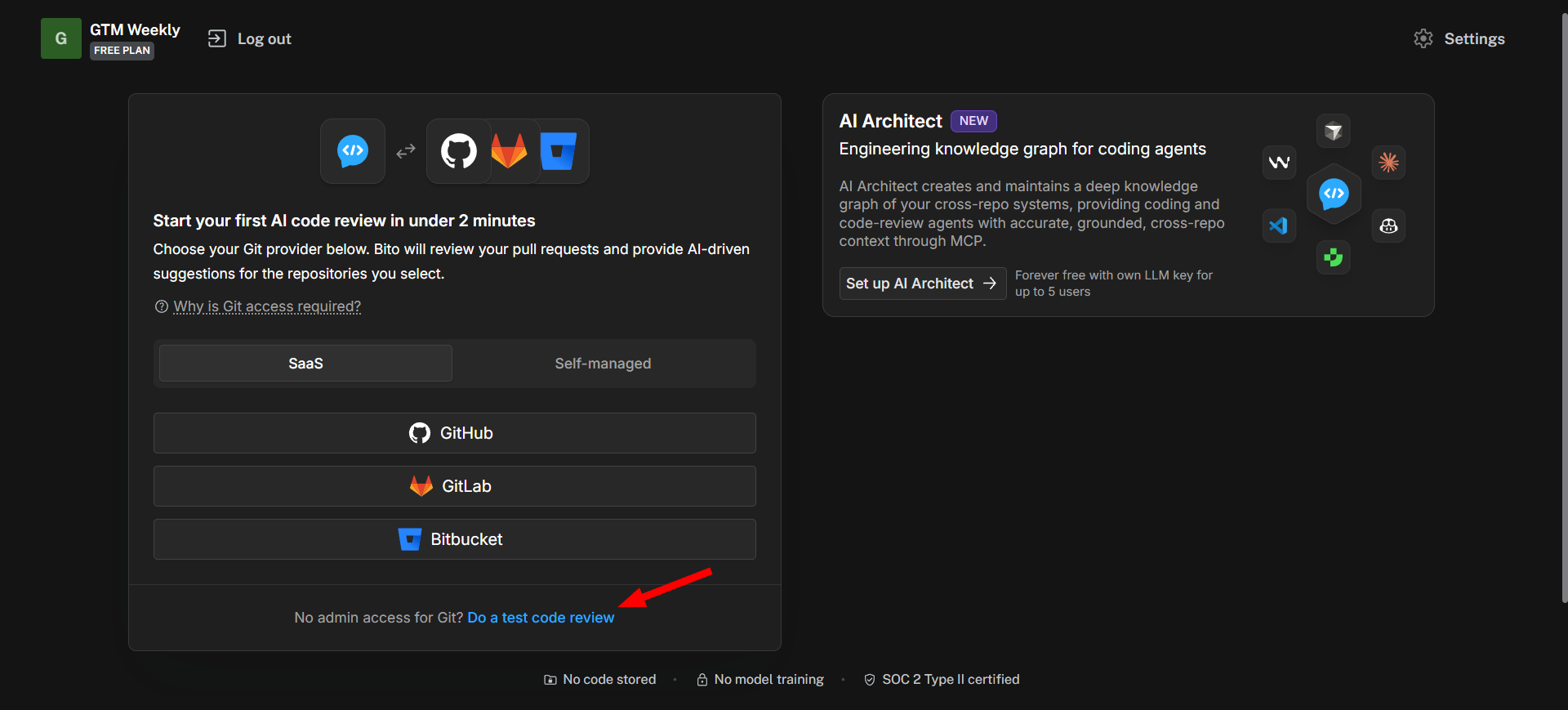
### Access Test Mode
* Click **"Do a test code review"** option at the bottom of the Git setup wizard
{% endstep %}
{% step %}
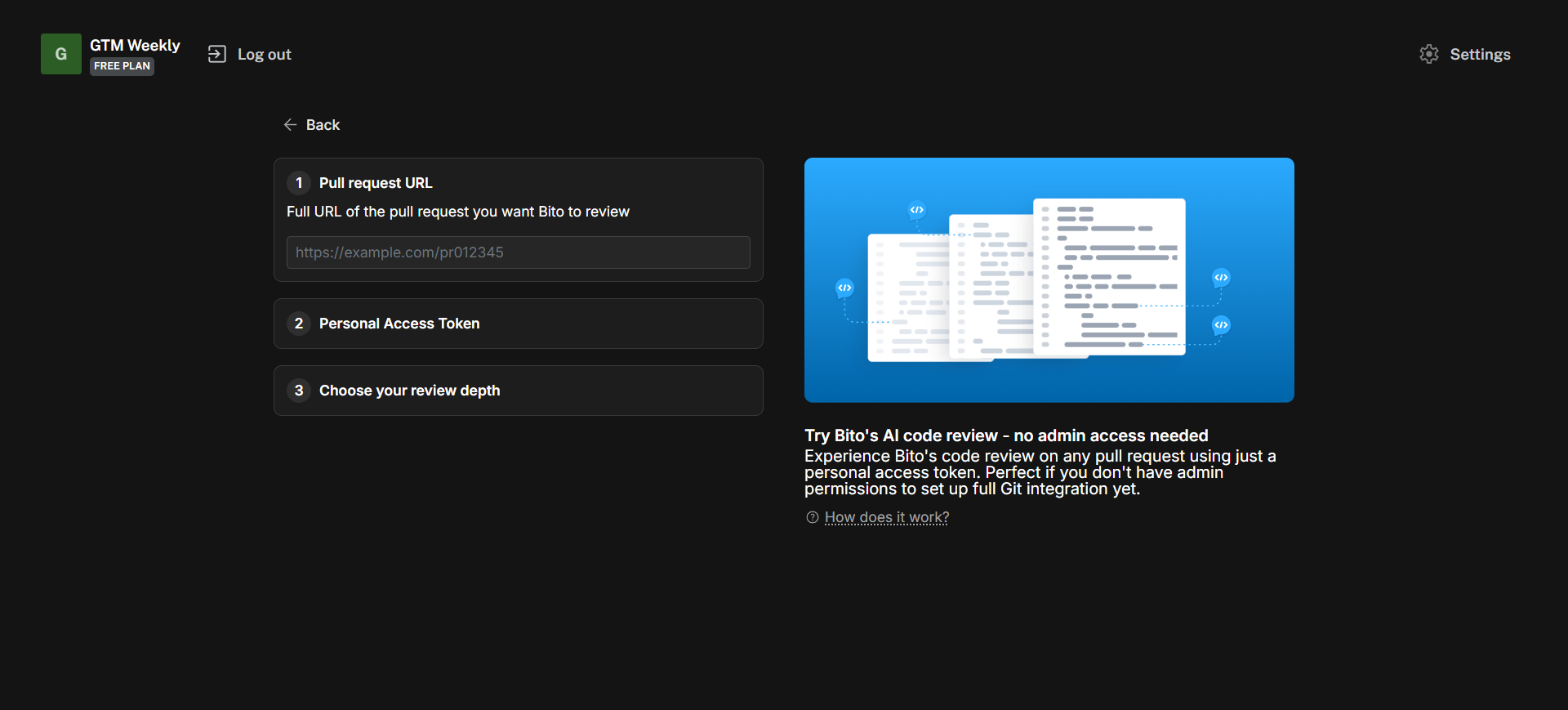
### Enter pull request details
1. **Pull request URL**
Enter the complete URL of the pull request you want Bito to review.
* **Example:** `https://github.com/username/repository/pull/123`
2. **Personal Access Token**
Generate a personal access token from your Git platform to authorize Bito to read the pull request:
1. **For GitHub:**
1. Create **GitHub classic Token with `repo` access**. Fine-grained tokens are not supported. [Learn more](https://docs.github.com/en/authentication/keeping-your-account-and-data-secure/managing-your-personal-access-tokens#creating-a-personal-access-token-classic)
2. **For GitLab:**
1. Create **GitLab token with `api` scope** [Learn more](https://docs.gitlab.com/user/profile/personal_access_tokens/#create-a-personal-access-token)
3. **For Bitbucket:**
1. Depending on your Bitbucket setup, you may need one of the following:
* For **Bitbucket Cloud** use **API Token**. [Learn more](https://support.atlassian.com/bitbucket-cloud/docs/create-an-api-token/)
* For **Bitbucket Enterprise (Self-Hosted)** use **HTTP Access Token**. [Learn more](https://confluence.atlassian.com/bitbucketserver/personal-access-tokens-939515499.html)
2. Required scopes:
* `read:pullrequest:bitbucket`
* `write:pullrequest:bitbucket`
* `read:workspace:bitbucket`
* `read:repository:bitbucket`
* `read:user:bitbucket`
3. Enter both your Bitbucket **email address** and the **personal access token** in Bito
4. **For Self-managed GitHub, GitLab, and Bitbucket:**
If you're using self-managed Git instances (GitHub Enterprise, GitLab Self-Managed, or Bitbucket Server):
1. Select your Git provider
2. Enter your Git domain URL (e.g., `https://bitbucket.example.com`)
3. Configure Network Access
* If your network restricts external services from accessing your Git server, add these Bito IP addresses to your allowed IP list:
```
18.188.201.104
3.23.173.30
18.216.64.170
```
3. **Validate your token**
Click **"Validate"** to verify that your personal access token is working correctly. This ensures Bito can access the pull request before proceeding.
4. **Choose your review depth**
Select the level of analysis you want:
* **Essential:** Focuses on the most critical issues (faster review)
* **Comprehensive:** Provides deeper analysis with more detailed feedback (more thorough review)
{% hint style="info" %}
Feel free to experiment with both approaches on different pull requests to find what works best for your needs.
{% endhint %}
{% endstep %}
{% step %}
### Start code review
Click **Do a test code review** to start the AI code review.
{% endstep %}
{% endstepper %}
## Test Mode dashboard
After completing your first test review, you'll have access to a dashboard showing:
* Number of test reviews remaining (out of 10 total)
* History of analyzed pull requests
* Quick-start button for new reviews
#### Starting new test review
To analyze another pull request, click **"New code review"** button in the upper-right corner of your review history table.
## Upgrading to full Git integration
Once you've used all 10 test reviews, you'll need to complete full Git integration to continue using Bito's AI Code Review Agent.
#### Why upgrade?
Full Git integration unlocks powerful features not available in Test Mode:
**Advanced configuration:**
* **Default branch settings:** Customize which branch is used for code reviews
* **Custom guidelines:** Define your own review rules and coding standards
* **Filters:** Exclude draft PRs, files, or branches from review to focus on relevant code.
* **Tools:** Enable additional checks, such as secret scanning.
* **Automation:** Configure auto-reviews, batching, and summary settings
* **And much more.**
**Unlimited reviews:**
* No review limits — analyze every pull request
* Automatic reviews on new PRs
* Incremental reviews on PR updates
* Complete team analytics and insights
#### How to upgrade
From your Test Mode dashboard, click **"Complete Git integration"** and follow the setup wizard to connect your Git repositories.
For detailed setup instructions, see:
* [**Guide for GitHub**](/ai-code-reviews-in-git/install-run-using-bito-cloud/guide-for-github.md)
* [**Guide for GitHub (Self-Managed)**](/ai-code-reviews-in-git/install-run-using-bito-cloud/guide-for-github-self-managed.md)
* [**Guide for GitLab**](/ai-code-reviews-in-git/install-run-using-bito-cloud/guide-for-gitlab.md)
* [**Guide for GitLab (Self-Managed)**](/ai-code-reviews-in-git/install-run-using-bito-cloud/guide-for-gitlab-self-managed.md)
* [**Guide for Bitbucket**](/ai-code-reviews-in-git/install-run-using-bito-cloud/guide-for-bitbucket.md)
* [**Guide for Bitbucket (Self-Managed)**](/ai-code-reviews-in-git/install-run-using-bito-cloud/guide-for-bitbucket-self-managed.md)
### FAQs
**Q: Can I use Test Mode if I've previously used Bito?**\
A: Test Mode is only available to users who haven't previously used a trial and haven't set up Git integration in their workspace.
**Q: What happens after I use all 10 test reviews?**\
A: You'll need to complete full Git integration to continue reviewing pull requests.
**Q: Can I test on private repositories?**\
A: Yes, as long as your personal access token has the correct permissions to access the repository.
**Q: Does Test Mode work with self-hosted Git instances?**\
A: Yes, Test Mode supports GitHub Enterprise, GitLab Self-Managed, and Bitbucket Server. You'll need to provide your Git domain URL and configure network access (whitelist Bito IP addresses) if needed.
**Q: Will my code be stored or used for training?**\
A: No. Bito does not store your code, and your code is never used for AI model training. Learn more about our [privacy and security practices](/privacy-and-security.md).
**Q: What's the difference between Essential and Comprehensive review modes?**\
A: Essential mode focuses on critical issues and completes faster, while Comprehensive mode provides deeper analysis with more detailed feedback. You can try both to see which fits your needs.
---
# Agent Instructions
This documentation is published with GitBook. GitBook is the documentation platform designed so that both humans and AI agents can read, navigate, and reason over technical content effectively. Learn more at gitbook.com.
## Querying This Documentation
If you need additional information that is not directly available in this page, you can query the documentation by asking a question.
Perform an HTTP GET request on the following URL with the `ask` and `goal` query parameters:
```
GET https://docs.bito.ai/ai-code-reviews-in-git/try-ai-code-reviews-using-test-mode.md?ask=&goal=
```
`ask` is the immediate question: it should be specific, self-contained, and written in natural language.
`goal` is what the user is ultimately trying to achieve, the reason they need the answer. Sharing it helps GitBook give you a better, more relevant answer. A goal is most helpful when it describes the outcome the user wants rather than restating the question. For example, with `ask=how do I create an API token`, a goal like `automate deployments from our CI pipeline` lets GitBook tailor the answer to that use case.
The response will contain a direct answer to the question and relevant excerpts and sources from the documentation.
Use this mechanism when the answer is not explicitly present in the current page, you need clarification or additional context, or you want to retrieve related documentation sections.