> For the complete documentation index, see [llms.txt](https://docs.bito.ai/llms.txt). Markdown versions of documentation pages are available by appending `.md` to page URLs; this page is available as [Markdown](https://docs.bito.ai/help/account-and-settings/workspace.md).
# Workspace
Learn How to Create, Join, or Change Workspace
A workspace is a dedicated environment or space where teams can collaborate and use Bito services. After logging into your Bito account, you can either create a new workspace or join an existing one you've been invited to.
{% hint style="info" %}
You can use Bito in a single-player mode for all the use cases. However, it works best when your coworkers join the Workspace for collaboration.
{% endhint %}
## Create a New Workspace
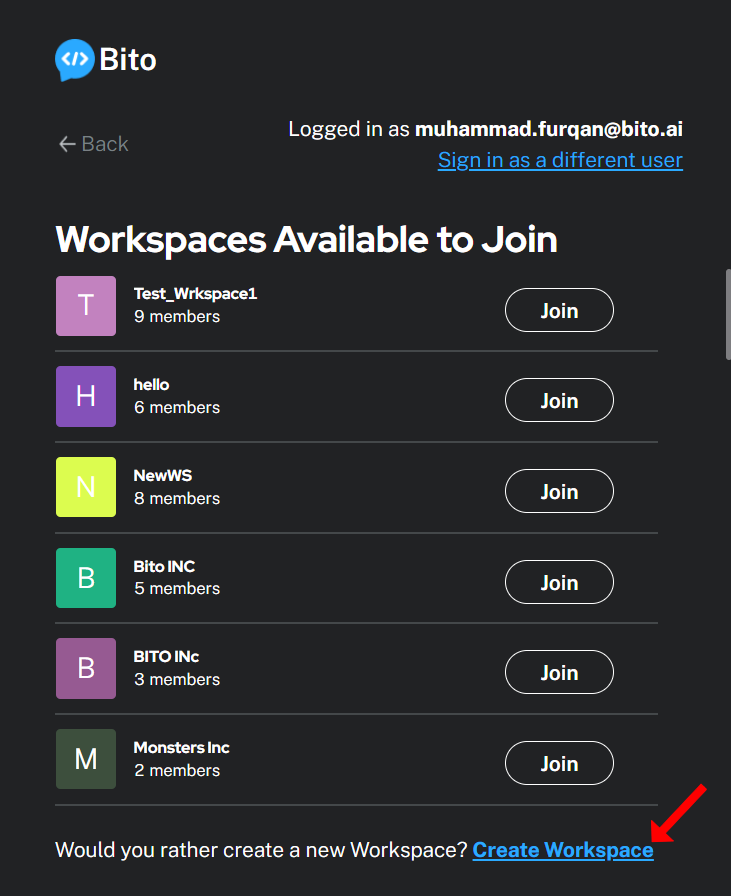
The link to create a new workspace will appear at the bottom of the sign-up flow screen. Click on "Create Workspace" to get started.
Now, enter the name of the workspace. You can also choose to make this workspace discoverable by the users with the same domain email as your email. Finally, click on the "Next" button to proceed creating a new workspace.
{% hint style="info" %}
For example, if your email is and you enable the "Workspace discovery" feature, then any other person with an email that ends in @mywebsite.com (like , , and so on) can join your workspace after they sign in.
You can always switch this feature off later by visiting the [**Workspace Settings**](https://alpha.bito.ai/home/settings/advance-settings) page.
{% endhint %}
{% hint style="info" %}
Workspace discovery feature is not available for public email addresses like @gmail.com, @outlook.com, @yahoo.com, etc.
{% endhint %}
Once you complete the Workspace setup, Bito will be ready to use.
## Join an Existing Workspace
If your email domain is allowed for the Workspace, or your coworker invited you, you will see the Workspace listed during the sign-up flow under the "Workspaces Available to Join" list.
Simply click on the "Join" button given in front of the workspace you want to join. Joining your company or team Workspace takes less than a minute.
Alternatively, you can join the Workspace through the Workspace link shared by your coworker.
## Change Workspace
Follow the below steps to switch to a different workspace:
1. First log out of your Bito account.
2. Then, log back in and choose the workspace you want from the available list.
### How to See Which Workspace You Are In?
In the IDE extension, place your mouse cursor over the workspace icon. The workspace name will show up as a tooltip.
---
# Agent Instructions
This documentation is published with GitBook. GitBook is the documentation platform designed so that both humans and AI agents can read, navigate, and reason over technical content effectively. Learn more at gitbook.com.
## Querying This Documentation
If you need additional information that is not directly available in this page, you can query the documentation by asking a question.
Perform an HTTP GET request on the following URL with the `ask` and `goal` query parameters:
```
GET https://docs.bito.ai/help/account-and-settings/workspace.md?ask=&goal=
```
`ask` is the immediate question: it should be specific, self-contained, and written in natural language.
`goal` is what the user is ultimately trying to achieve, the reason they need the answer. Sharing it helps GitBook give you a better, more relevant answer. A goal is most helpful when it describes the outcome the user wants rather than restating the question. For example, with `ask=how do I create an API token`, a goal like `automate deployments from our CI pipeline` lets GitBook tailor the answer to that use case.
The response will contain a direct answer to the question and relevant excerpts and sources from the documentation.
Use this mechanism when the answer is not explicitly present in the current page, you need clarification or additional context, or you want to retrieve related documentation sections.