> For the complete documentation index, see [llms.txt](https://docs.bito.ai/llms.txt). Markdown versions of documentation pages are available by appending `.md` to page URLs; this page is available as [Markdown](https://docs.bito.ai/ai-code-reviews-in-git/confluence-integration.md).
# Confluence integration
Make sure every code change follows the requirements and guidance recorded in your Confluence pages.
{% hint style="info" %}
**Note:** The Confluence integration is available only on the [**Enterprise Plan**](https://bito.ai/pricing/).
{% endhint %}
Bito integrates with Confluence to enhance functional validation by enriching pull request requirements with deeper context from linked documentation.
It fetches relevant details from Confluence pages linked in Jira issues or directly in pull request – such as edge cases, design decisions, or test scenarios – and incorporates them into structured validation results.
This improves accuracy when validating code changes and ensures that every pull request is aligned with the requirements.
## How it works
When a pull request is opened, Bito automatically:
1. **Detects Confluence references.** Bito looks for Confluence page links in the pull request description or in any linked Jira issues.
{% hint style="info" %}
**Note:** If [Jira integration](/ai-code-reviews-in-git/jira-integration.md) is enabled, Bito finds the Confluence pages associated with the linked Jira tickets.
{% endhint %}
2. **Fetches documentation.** Bito retrieves the content of those Confluence pages and extracts key information (requirements, design decisions, acceptance criteria, etc.).
3. **Validates code against the docs.** It compares your code changes to the enriched context and generates structured validation feedback.
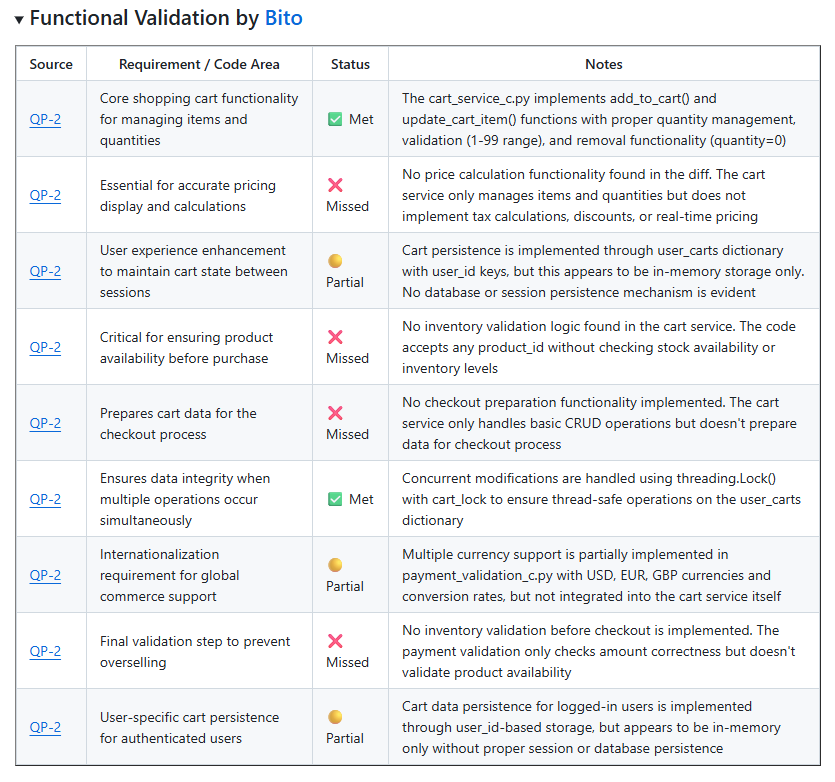
4. **Reports results in the PR.** Bito posts a "Functional Validation" table directly in your pull request comments, showing how each documented requirement is met, missed, or partially implemented.
## Integration steps
{% stepper %}
{% step %}
### Connect Bito with Confluence
1. In your Bito dashboard, go to the [**Manage integrations**](https://alpha.bito.ai/home/cra-integrations) page.
2. Under **Available integrations**, find **Confluence** and click **Connect**.
3. Click **Authorize with your Confluence account**. You will be redirected to Atlassian's site to grant Bito access to your Confluence workspace. This uses OAuth to securely link your Confluence content.
4. Sign in to your Atlassian account if prompted, then click **Accept**. After successful authorization, you will be returned to Bito.
{% endstep %}
{% step %}
### Agent-specific settings
After completing the initial setup, you can control Confluence integration on a per-agent basis:
1. Go to the [**Repositories**](https://alpha.bito.ai/home/ai-agents/code-review-agent) page in your Bito dashboard.
2. Find the Agent instance you want to connect with Confluence and open its settings.
3. Within the Agent settings screen, click on the [**Functional validation** tab](https://docs.bito.ai/ai-code-reviews-in-git/pages/c2rnX1WC7HSmQdYRsJvG#f.-functional-validation).
4. Locate the **Functional validation** option and enable it to enhance pull request validation by incorporating relevant context from linked Confluence pages.
{% endstep %}
{% endstepper %}
{% hint style="info" %}
**Note:** The **Functional validation** feature must be enabled in your Bito agent settings for the integration to work.
{% endhint %}
## Linking Confluence pages to pull requests
For Bito to fetch the right documentation, your pull requests must reference the relevant Confluence pages:
* **With Jira integration:** Ensure your Jira issues link to the Confluence pages (for example, by using the *Jira Issue* macro on the Confluence page). When a Confluence page mentions a Jira issue key, Jira automatically creates a link to that page. Bito will follow those links to gather the documentation context.
* **Without Jira integration:** Include a link to the Confluence page directly in the pull request description. Bito will use that URL to retrieve the page content for validation.
{% hint style="info" %}
**Note:** Bito supports both full Confluence page URLs (with page ID) and short Confluence URLs.
**Supported examples:**
* `https://yourcompany.atlassian.net/wiki/spaces/SPACEKEY/pages/123456789/Page-Title`
* `https://yourcompany.atlassian.net/wiki/x/AbCdE`
{% endhint %}
## Understanding the validation results
When Bito completes its analysis, it adds a **"Functional Validation by Bito"** table to your pull request comments. This table contains four columns:
#### Source
Displays the **Jira issue key** (e.g., "QP-11", "QP-123") that references the specific Jira ticket being validated.
#### Requirement / Code Area
Shows a brief description of the requirement or task that needs to be completed, summarizing what needs to be done according to the Jira ticket and Confluence page.
#### Status
Indicates the completion status of each requirement:
* **Met**: The requirement has been fully implemented in the pull request
* **Missed**: The requirement has not been addressed in the pull request
* **Partial**: The requirement has been partially implemented but still needs additional work
* **Conflict**: A change contradicts another requirement (e.g., two requirements cannot both be satisfied by the current code).
* **Out‑of‑scope**: The change is not in the requirements (the code change does not relate to any defined requirement).
#### Notes
Provides detailed information about the validation status:
* **For "Met" items**: Explains what has been successfully implemented
* **For "Missed" items**: Describes what is missing and needs to be addressed
* **For "Partial" items**: Details what has been completed and what still remains to be done
* **For "Conflict" items**: Describes why there is a contradiction between requirements and what might need to be resolved.
* **For "Out‑of‑scope" items**: Explains why the change is considered outside the defined requirements.
## Example validation output
Here's what a typical validation table looks like:
## Benefits
* **Improved traceability:** Syncing code validation with Confluence documentation creates a clear audit trail from requirements to implementation.
* **Single source of truth:** By pulling from Confluence (the team’s central documentation hub), Bito ensures developers review code against the definitive requirements. Teams spend less time context-switching between tools.
* **Aligned development:** Automatic validation against documented scenarios helps catch missing features or edge cases early, reducing manual review effort and improving quality.
## Troubleshooting
* **No "Functional validation" table in pull request:** Check that Confluence is connected under [*Manage integrations*](https://alpha.bito.ai/home/cra-integrations) and that the [Functional Validation setting is enabled](https://docs.bito.ai/ai-code-reviews-in-git/pages/c2rnX1WC7HSmQdYRsJvG#f.-functional-validation) for your Agent. Also verify that your PR or its linked Jira issues actually reference the Confluence pages.
* **Missing or incorrect context:** Make sure the Confluence pages contain the up-to-date requirements or test scenarios.
* **Authorization errors:** If Bito can't access Confluence, try re-authorizing the integration. Ensure your Atlassian account has permission to read the relevant Confluence pages.
---
# Agent Instructions
This documentation is published with GitBook. GitBook is the documentation platform designed so that both humans and AI agents can read, navigate, and reason over technical content effectively. Learn more at gitbook.com.
## Querying This Documentation
If you need additional information that is not directly available in this page, you can query the documentation by asking a question.
Perform an HTTP GET request on the following URL with the `ask` and `goal` query parameters:
```
GET https://docs.bito.ai/ai-code-reviews-in-git/confluence-integration.md?ask=&goal=
```
`ask` is the immediate question: it should be specific, self-contained, and written in natural language.
`goal` is what the user is ultimately trying to achieve, the reason they need the answer. Sharing it helps GitBook give you a better, more relevant answer. A goal is most helpful when it describes the outcome the user wants rather than restating the question. For example, with `ask=how do I create an API token`, a goal like `automate deployments from our CI pipeline` lets GitBook tailor the answer to that use case.
The response will contain a direct answer to the question and relevant excerpts and sources from the documentation.
Use this mechanism when the answer is not explicitly present in the current page, you need clarification or additional context, or you want to retrieve related documentation sections.