> For the complete documentation index, see [llms.txt](https://docs.bito.ai/llms.txt). Markdown versions of documentation pages are available by appending `.md` to page URLs; this page is available as [Markdown](https://docs.bito.ai/ai-code-reviews-in-git/interaction-diagram.md).
# Interaction diagram
Visualize code changes and their impact with automated sequence diagrams.
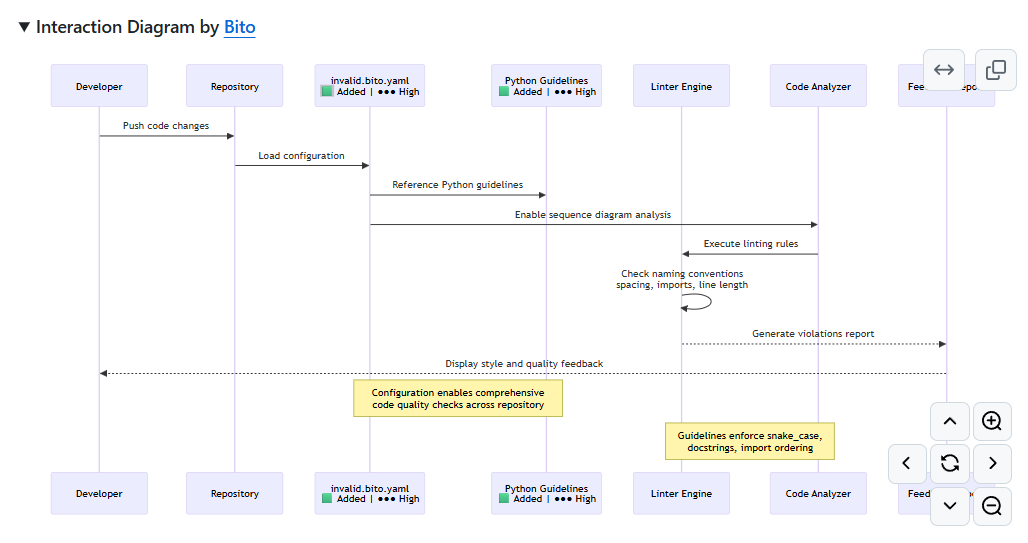
The **Interaction Diagram** is a visual feature in Bito's [AI Code Review Agent](/ai-code-reviews-in-git/overview.md) that automatically generates sequence diagrams to help you quickly understand the impact of code changes in your pull requests.
This diagram visualizes how different components of your code interact with each other, making code reviews faster and more intuitive.
Interaction Diagram by Bito
### How to enable
1. Navigate to the [Code Review > Repositories](https://alpha.bito.ai/home/ai-agents/code-review-agent) dashboard.
2. Click the **Settings** button next to the Agent instance you wish to modify.
3. Under **Review** tab, enable the **Generate interaction diagrams** option.
Once enabled, Bito will automatically post interaction diagrams during code reviews.
### Understanding sequence diagrams
A sequence diagram is a type of visual diagram that shows how different parts of your system interact with each other over time.
It illustrates the flow of operations by displaying the order in which methods are called and how data flows between different components.
This makes it easy to trace the execution path of your code and understand dependencies between modules.
### Diagram components
#### Boxes
The main components in the diagram are displayed as boxes. The level of detail shown depends on the size of your code changes:
* **Small changes**: Boxes may represent individual classes or functions with detailed interactions
* **Large changes**: Boxes may represent higher-level abstractions for better readability
Bito's AI automatically determines the appropriate level of detail based on your pull request.
#### Labels and indicators
Within boxes, you'll see labels that provide quick insights:
**Change type:**
Indicates what kind of modification was made to each module in your codebase.
* 🟩 **Added** - New code introduced to the codebase. These are components, functions, or classes that didn't exist before this pull request.
* 🔄 **Updated** - Existing code that has been modified. This indicates changes to the logic, behavior, or implementation of existing components.
* **Deleted** - Code that has been removed from the codebase. These components are no longer present after this pull request is merged.
**Impact level:**
Shows the scope and significance of changes to help you prioritize your code review efforts.
* **Low** - Minimal impact (● ○ ○)
* Changes are localized and unlikely to affect other parts of the system. Safe to review with standard attention.
* **Medium** - Moderate impact (● ● ○)
* Changes affect multiple components or have moderate complexity. Requires careful review of interactions and side effects.
* **High** - Significant impact (● ● ●)
* Changes are extensive or critical, affecting core functionality or multiple system areas. Demands thorough review and testing.
These visual indicators help you identify critical changes at a glance.
#### Arrows and flow
**Solid arrows (→)**: Represent forward calls flowing left to right
* Example: If `main()` calls `UserService`, a solid arrow points from `main()` to `UserService`
**Dotted arrows (⇢)**: Represent return flows going right to left
* Example: When `UserService` returns data to `main()`, a dotted arrow points back from `UserService` to `main()`
**Circular arrows (↻)**: Indicate internal calls within the same module
* Example: One component of `UserService` calling another component within `UserService`
#### Control flow blocks
**Alt block (if-else logic)**
* Displayed as a dotted box around multiple lines
* Contains two sections separated by a dotted line representing "if" and "else" branches
* Shows conditional execution paths in your code
**Opt block (optional parameters)**
* Used for functions with parameter overloading
* Contains a single section for optional execution flow
* Represents code that may or may not execute depending on optional parameters
Code outside these blocks represents the normal execution flow.
### Platform-specific behavior
#### GitHub
* Diagrams are posted in **Mermaid format**
* Interactive controls available:
* Pan (move top, bottom, left, right)
* Expand/collapse
* Zoom in/out
#### GitLab
* Diagrams are posted in **Mermaid format**
* **Note**: For very large diagrams, GitLab may not render automatically. You'll see a notice box with a **"Display"** button - click it to manually render the diagram
#### Bitbucket
* Diagrams are posted as **image format**
{% hint style="info" %}
**Note:** If you see a "syntax error" or "unable to render" message, try refreshing the page.
{% endhint %}
### Incremental reviews
When you run incremental reviews (for example, by using the `/review` command in pull request comments), the existing interaction diagram will be updated rather than creating a new comment with a separate diagram.
### Interaction diagram vs impact analysis diagram
Bito can generate two types of diagrams, but only one is displayed at a time:
* **Interaction diagram**: Generated by the standard Code Review Agent, focusing on code changes in the current pull request
* **Impact analysis diagram**: Generated using [Bito AI Architect](/ai-architect/overview.md) with complete cross-repository codebase understanding.
* **Note:** This feature is not publicly available yet. Please contact Bito at [**support@bito.ai**](mailto:support@bito.ai) to have it enabled for your account.
{% hint style="info" %}
**Note:** If both **Impact Analysis** and **Interaction Diagram** are enabled, only the Impact Analysis diagram will be shown.
{% endhint %}
### Best practices
* Review the diagram before diving into code details to get a high-level understanding
* Use impact indicators to prioritize which changes need closer examination
* Follow the arrow flows to understand the execution path
* Pay special attention to "High" impact modules
### Troubleshooting
* **Diagram not appearing**: Verify that **"Generate interaction diagrams"** is enabled in [Bito Cloud](https://alpha.bito.ai/) settings
* **Rendering issues**:
* In GitLab, you may need to click the **Display** button to manually render the diagram.
* Refresh the page - this often resolves transient rendering errors.
* **Syntax errors**: In some cases, the Mermaid diagram may contain syntax errors that prevent it from rendering. Try updating the pull request so the diagram is regenerated.
---
# Agent Instructions
This documentation is published with GitBook. GitBook is the documentation platform designed so that both humans and AI agents can read, navigate, and reason over technical content effectively. Learn more at gitbook.com.
## Querying This Documentation
If you need additional information that is not directly available in this page, you can query the documentation by asking a question.
Perform an HTTP GET request on the following URL with the `ask` and `goal` query parameters:
```
GET https://docs.bito.ai/ai-code-reviews-in-git/interaction-diagram.md?ask=&goal=
```
`ask` is the immediate question: it should be specific, self-contained, and written in natural language.
`goal` is what the user is ultimately trying to achieve, the reason they need the answer. Sharing it helps GitBook give you a better, more relevant answer. A goal is most helpful when it describes the outcome the user wants rather than restating the question. For example, with `ask=how do I create an API token`, a goal like `automate deployments from our CI pipeline` lets GitBook tailor the answer to that use case.
The response will contain a direct answer to the question and relevant excerpts and sources from the documentation.
Use this mechanism when the answer is not explicitly present in the current page, you need clarification or additional context, or you want to retrieve related documentation sections.